Matthew Hodge
Full Stack Developer

Docker Compose for Laravel: Local Dev Stack from Scratch

"Works on my machine" is one of those phrases that ends careers and friendships. Docker fixes it — or at least it gives you the tools to. The problem is that most Docker tutorials either show you a toy example or assume you already know what you're doing.

In this post, I'll walk through setting up a real Laravel development stack with Docker Compose: PHP-FPM, Nginx, MySQL, and Redis. No Laravel Sail — I want to show you what's happening under the hood so you understand what you're running.


What We're Building

  • PHP 8.3 FPM — runs your Laravel application
  • Nginx — handles HTTP and forwards PHP requests to FPM
  • MySQL 8.0 — your database
  • Redis — cache, sessions, queues

The project structure we'll end up with:

your-laravel-app/
├── docker/
│   ├── nginx/
│   │   └── default.conf
│   └── php/
│       └── Dockerfile
├── docker-compose.yml
├── .env
└── ... (Laravel app files)

The Dockerfile

We need a custom PHP image because we need extensions that aren't in the base php:8.3-fpm image.

# docker/php/Dockerfile

FROM php:8.3-fpm

# System dependencies
RUN apt-get update && apt-get install -y \
    git \
    curl \
    libpng-dev \
    libonig-dev \
    libxml2-dev \
    libzip-dev \
    zip \
    unzip \
    && apt-get clean \
    && rm -rf /var/lib/apt/lists/*

# PHP extensions
RUN docker-php-ext-install \
    pdo_mysql \
    mbstring \
    exif \
    pcntl \
    bcmath \
    gd \
    zip

# Redis extension via PECL
RUN pecl install redis && docker-php-ext-enable redis

# Composer
COPY --from=composer:latest /usr/bin/composer /usr/bin/composer

# Set working directory
WORKDIR /var/www

# Copy application files
COPY . /var/www

# Fix permissions
RUN chown -R www-data:www-data /var/www/storage /var/www/bootstrap/cache

Nginx Configuration

# docker/nginx/default.conf

server {
    listen 80;
    index index.php index.html;
    root /var/www/public;

    location / {
        try_files $uri $uri/ /index.php?$query_string;
    }

    location ~ \.php$ {
        fastcgi_pass php:9000;
        fastcgi_index index.php;
        fastcgi_param SCRIPT_FILENAME $realpath_root$fastcgi_script_name;
        include fastcgi_params;
    }

    location ~ /\.ht {
        deny all;
    }
}

The key bit here is fastcgi_pass php:9000php is the service name in Docker Compose, and Docker's internal DNS resolves it automatically.


docker-compose.yml

services:

  app:
    build:
      context: .
      dockerfile: docker/php/Dockerfile
    container_name: laravel_app
    restart: unless-stopped
    volumes:
      - .:/var/www
      - ./storage:/var/www/storage
    networks:
      - laravel
    depends_on:
      - db
      - redis

  nginx:
    image: nginx:alpine
    container_name: laravel_nginx
    restart: unless-stopped
    ports:
      - "8080:80"
    volumes:
      - .:/var/www
      - ./docker/nginx/default.conf:/etc/nginx/conf.d/default.conf
    networks:
      - laravel
    depends_on:
      - app

  db:
    image: mysql:8.0
    container_name: laravel_db
    restart: unless-stopped
    environment:
      MYSQL_DATABASE: ${DB_DATABASE}
      MYSQL_ROOT_PASSWORD: ${DB_PASSWORD}
      MYSQL_PASSWORD: ${DB_PASSWORD}
      MYSQL_USER: ${DB_USERNAME}
    volumes:
      - dbdata:/var/lib/mysql
    ports:
      - "3306:3306"
    networks:
      - laravel

  redis:
    image: redis:alpine
    container_name: laravel_redis
    restart: unless-stopped
    ports:
      - "6379:6379"
    networks:
      - laravel

networks:
  laravel:
    driver: bridge

volumes:
  dbdata:
    driver: local

A couple of things worth noting:

  • Volumes on .:/var/www — this mounts your local project into the container, so code changes reflect immediately without rebuilding.
  • dbdata named volume — MySQL data persists between container restarts. Without this, your database gets wiped every time you bring the stack down.
  • restart: unless-stopped — containers come back up automatically after a reboot.

.env Changes

Update your Laravel .env to point at the Docker services:

DB_CONNECTION=mysql
DB_HOST=db
DB_PORT=3306
DB_DATABASE=laravel
DB_USERNAME=laravel
DB_PASSWORD=secret

REDIS_HOST=redis
REDIS_PORT=6379

CACHE_DRIVER=redis
SESSION_DRIVER=redis
QUEUE_CONNECTION=redis

Note that DB_HOST is db — the service name, not 127.0.0.1. Same with REDIS_HOST=redis. Docker Compose's internal network handles the DNS.


Starting the Stack

# Build and start everything
docker compose up -d --build

# Run migrations
docker compose exec app php artisan migrate

# Generate app key if needed
docker compose exec app php artisan key:generate

Your app should now be available at http://localhost:8080.


Useful Commands

# Tail Laravel logs
docker compose exec app tail -f storage/logs/laravel.log

# Run artisan commands
docker compose exec app php artisan tinker
docker compose exec app php artisan queue:work

# Access MySQL directly
docker compose exec db mysql -u laravel -p laravel

# Install Composer packages
docker compose exec app composer require some/package

# Rebuild after Dockerfile changes
docker compose up -d --build app

# Stop everything
docker compose down

# Stop and wipe the database volume
docker compose down -v

Composer Install on First Run

If you're cloning into a fresh repo, the vendor directory won't exist yet. You can handle this with an entrypoint or just run it manually after the first up:

docker compose exec app composer install

Or add an entrypoint script to your Dockerfile that runs composer install on startup — useful if you want fully automated setup for new team members.


Tips

  • Don't run Composer or Artisan on your host once you're using Docker — run everything through docker compose exec app. This keeps your environment consistent.
  • Add a Makefile to wrap the long commands. make migrate, make shell, make up are much nicer than remembering the full docker compose exec syntax.
  • Watch out for file permission issues on Linux hosts — www-data inside the container may conflict with your local user. Setting user: "${UID}:${GID}" in the service definition can help.
  • Mount vendor as a volume if you want to exclude it from the bind mount for better performance on macOS.

Final Thoughts

Once you've got this set up, adding a new developer to the project is git clone, docker compose up, done. No "install PHP 8.3", no "configure your Nginx", no diverging local environments.

It's a bit more upfront investment than php artisan serve, but you'll thank yourself the first time someone onboards in under five minutes.
Intro

Running PHP, Nginx container using Docker on AWS Beanstalk is really easy when you get the hang of it after spending some time on Dockerhub and reading tutorials (like this) will allow you to get up and running with your own project as quick as possible.

If you you would like another resource I highly recommend reading Docker file best practices

Prepare the source.zip

This is the source.zip file we will be uploading as our code to the beanstalk, you can use the list of files with associated content below to build your image

Dockerfile
FROM alpine:3.14

# Install packages
RUN apk update
RUN apk --no-cache add \
    ca-certificates \
    php \
    php-fpm \
    php-opcache \
    php-openssl \
    php-curl \
    php-mysqli \
    php-pdo \
    php-pdo_pgsql \
    php-pdo_mysql \
    php-pgsql \
    php-json \
    php-session \
    php-tokenizer \
    php-bcmath \
    php-mbstring \
    php-ctype \
    php-xml \
    nginx \
    supervisor \
    curl \
    bash

# Configure nginx
COPY docker-config/nginx/nginx.conf /etc/nginx/nginx.conf

# Configure supervisord
COPY docker-config/supervisord/supervisord.conf /etc/supervisor/conf.d/supervisord.conf

# Setup document root
RUN mkdir -p /var/www/html

# Make sure files/folders needed by the processes are accessable when they run under the nobody user
RUN chown -R nobody.nobody /var/www/html && \
  chown -R nobody.nobody /run && \
  chown -R nobody.nobody /var/lib/nginx && \
  chown -R nobody.nobody /var/log/nginx

# Switch to use a non-root user from here on
USER nobody

# Add application
WORKDIR /var/www/html
COPY --chown=nobody src/ /var/www/html/

# Expose the port nginx is reachable on
EXPOSE 8080

# Let supervisord start nginx & php-fpm
CMD ["/usr/bin/supervisord", "-c", "/etc/supervisor/conf.d/supervisord.conf"]

# Configure a healthcheck to validate that everything is up&running
HEALTHCHECK --timeout=10s CMD curl --silent --fail http://127.0.0.1:8080/fpm-ping
docker-config/php/fpm-pool.conf
[global]
error_log = /dev/stderr

[www]
listen = /run/php-fpm.sock
pm.status_path = /fpm-status
pm = static
pm.max_children = 100
pm.process_idle_timeout = 10s;
pm.max_requests = 1000
clear_env = no
catch_workers_output = yes
decorate_workers_output = no
ping.path = /fpm-ping
docker-config/php/php.ini
expose_php = Off
[Date]
date.timezone="UTC"
docker-config/nginx/nginx.conf
worker_processes auto;
error_log stderr warn;
pid /run/nginx.pid;

events {
    worker_connections 1024;
}

http {
    include mime.types;
    default_type application/octet-stream;

    # Define custom log format to include reponse times
    log_format main_timed '$remote_addr - $remote_user [$time_local] "$request" '
                          '$status $body_bytes_sent "$http_referer" '
                          '"$http_user_agent" "$http_x_forwarded_for" '
                          '$request_time $upstream_response_time $pipe $upstream_cache_status';

    access_log /dev/stdout main_timed;
    error_log /dev/stderr notice;

    keepalive_timeout 65;

    server_tokens off;

    # Write temporary files to /tmp so they can be created as a non-privileged user
    client_body_temp_path /tmp/client_temp;
    proxy_temp_path /tmp/proxy_temp_path;
    fastcgi_temp_path /tmp/fastcgi_temp;
    uwsgi_temp_path /tmp/uwsgi_temp;
    scgi_temp_path /tmp/scgi_temp;

    # Default server definition
    server {
        listen 8080 default_server;

        server_name _;

        sendfile off;

        root /var/www/html;
        index index.php index.html;

        location / {
            # First attempt to serve request as file, then
            # as directory, then fall back to index.php
            try_files $uri $uri/ /index.php?$query_string;
        }

        # Redirect server error pages to the static page /50x.html
        error_page 500 502 503 504 /50x.html;
        location = /50x.html {
            root /var/lib/nginx/html;
        }

        # Pass the PHP scripts to PHP-FPM listening on 127.0.0.1:9000
        location ~ \.php$ {
            try_files $uri =404;
            fastcgi_split_path_info ^(.+\.php)(/.+)$;
            fastcgi_pass unix:/run/php-fpm.sock;
            fastcgi_param SCRIPT_FILENAME $document_root$fastcgi_script_name;
            fastcgi_param SCRIPT_NAME $fastcgi_script_name;
            fastcgi_index index.php;
            include fastcgi_params;
        }

        location ~* \.(jpg|jpeg|gif|png|css|js|ico|xml)$ {
            expires 5d;
        }

        # Deny access to . files, for security
        location ~ /\. {
            log_not_found off;
            deny all;
        }

        # Allow fpm ping and status from localhost
        location ~ ^/(fpm-status|fpm-ping)$ {
            access_log off;
            allow 127.0.0.1;
            deny all;
            fastcgi_param SCRIPT_FILENAME $document_root$fastcgi_script_name;
            include fastcgi_params;
            fastcgi_pass unix:/run/php-fpm.sock;
        }
    }
    
    gzip on;
    gzip_proxied any;
    gzip_types text/plain application/xml text/css text/js text/xml application/x-javascript text/javascript application/json application/xml+rss;
    gzip_vary on;
    gzip_disable "msie6";
    
    # Include other server configs
    include /etc/nginx/conf.d/*.conf;
}
docker-config/supervisord/supervisord.conf
[supervisord]
nodaemon=true
logfile=/dev/null
logfile_maxbytes=0
pidfile=/run/supervisord.pid

[program:php-fpm]
command=php-fpm7 -F
stdout_logfile=/dev/stdout
stdout_logfile_maxbytes=0
stderr_logfile=/dev/stderr
stderr_logfile_maxbytes=0
autorestart=false
startretries=0

[program:nginx]
command=nginx -g 'daemon off;'
stdout_logfile=/dev/stdout
stdout_logfile_maxbytes=0
stderr_logfile=/dev/stderr
stderr_logfile_maxbytes=0
autorestart=false
startretries=0

README.md
# Webserver

running alpine linux with php and nginx

## Building and running
docker build -t mhodge/webserver .
docker run --name=mhodge-webserver -p 80:8080 mhodge/webserver

## Stop the container
docker container stop mhodge-webserver

## Remove the container
docker container rm mhodge-webserver

## Remove the image
docker image rm mhodge/webserver
Dockerrun.aws.json
{
    "AWSEBDockerrunVersion": "1",
    "Logging": "/tmp/php-nginx-webserver",
    "Image": {
        "Update": "false"
    },
    "Ports": [
        {
          "HostPort": 80,
          "ContainerPort": 8080
        }
    ]    
}

Your final path should look something like this:

Source
-docker-config
--nginx
---nginx.conf
--php
---fpm-pool.conf
---php.ini
--supervisord
---supervisord.conf
-src
--index.php
--static.html
-Dockerfile
-Dockerrun.aws.json
-README.md

Running Locally

You can now do a local test with the given folder performing the commands as per the README.md

Build and Run

  1. docker build -t mhodge/webserver .
  2. docker run --name=mhodge-webserver -p 80:8080 mhodge/webserver

Stop and Remove

  1. docker container stop mhodge-webserver
  2. docker container rm mhodge-webserver
  3. docker image rm mhodge/webserver

AWS

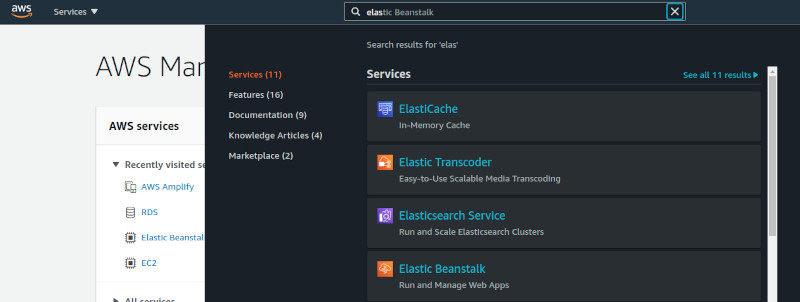
I'm assuming you have an AWS account setup and are ready to get started, after logging in search and open elastic beanstalk

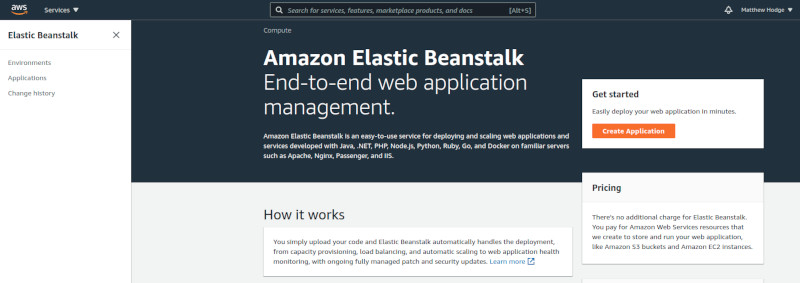
Beanstalk - Step 1

The Beanstalk console will load as per below, when it does click create application

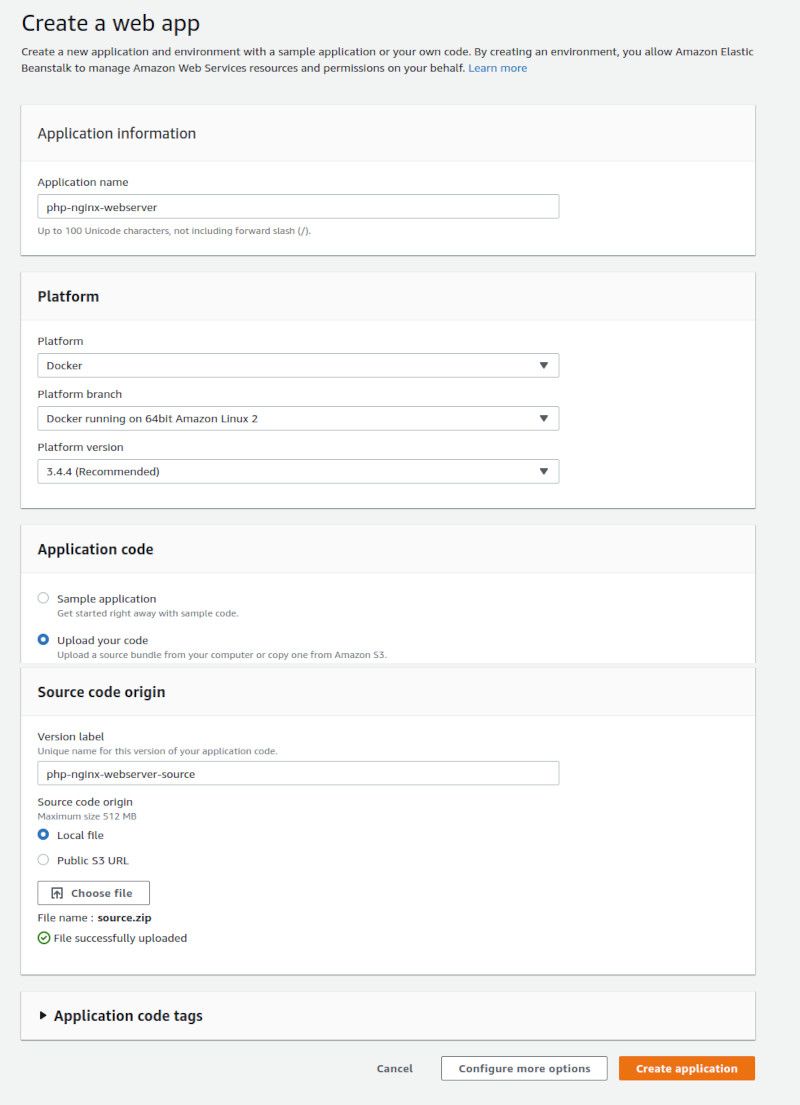
Beanstalk - Step 2

Fill in the fields as per below, however we going to make some slight adjustments to the configuration after populating all the fields click the Create application button, go grab a coffee and let AWS Beanstalk set things up

Beanstalk - Step 3

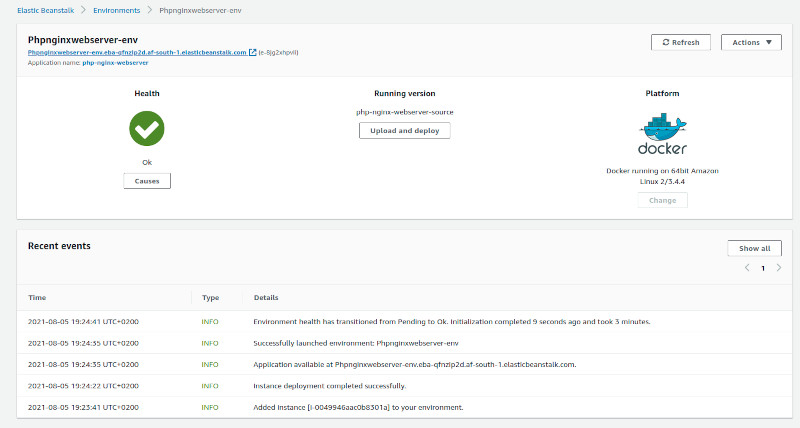
AWS Beanstalk will now configure all the cloudwatch, auto scalling groups, etc2 instances etc etc preparing to boot your configuration as per the source.zip we created earlier.

Beanstalk - Step 4

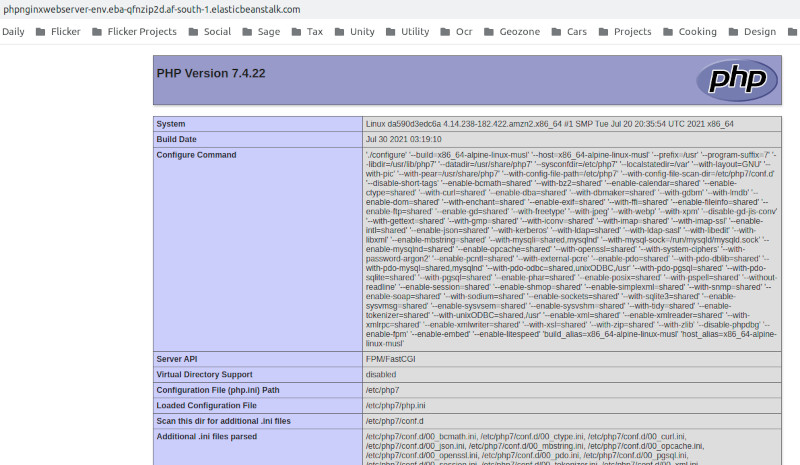
Just like that our instance is up and running, you can use the link created by beanstalk in the top left to access your newly created and running application you should see something like below (pending how you altered your source.zip)

Beanstalk - Step 5

Where to from here?

This should give you enough grounding to get playing with Docker on your local / cloud, this barely scratches the surface, why not try multi phase build? include a database? use an EFS? options are wide open!

Then there is of course codepiplines codebuilds so much more to play with.

Highly suggest you read Use multi-stage builds over on docker.

If you think this is cool wait until you see GitHub Actions, but thats a tutorial for another day

Conclusion

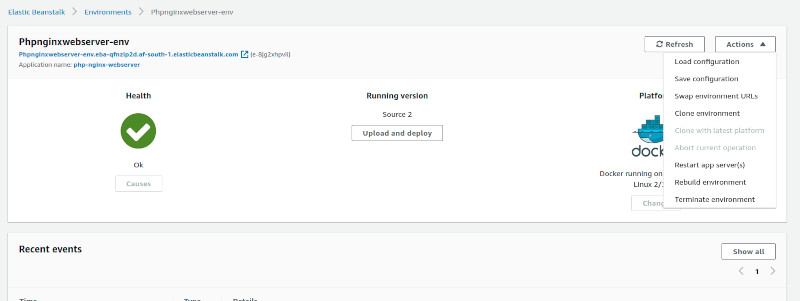
Once all said and done, dont forget to stop those running containers, and make sure to terminate your beanstalk (if you were just playing around).

Just load up your beanstalk console click actions, Terminate Environment.

Beanstalk - Step 6